

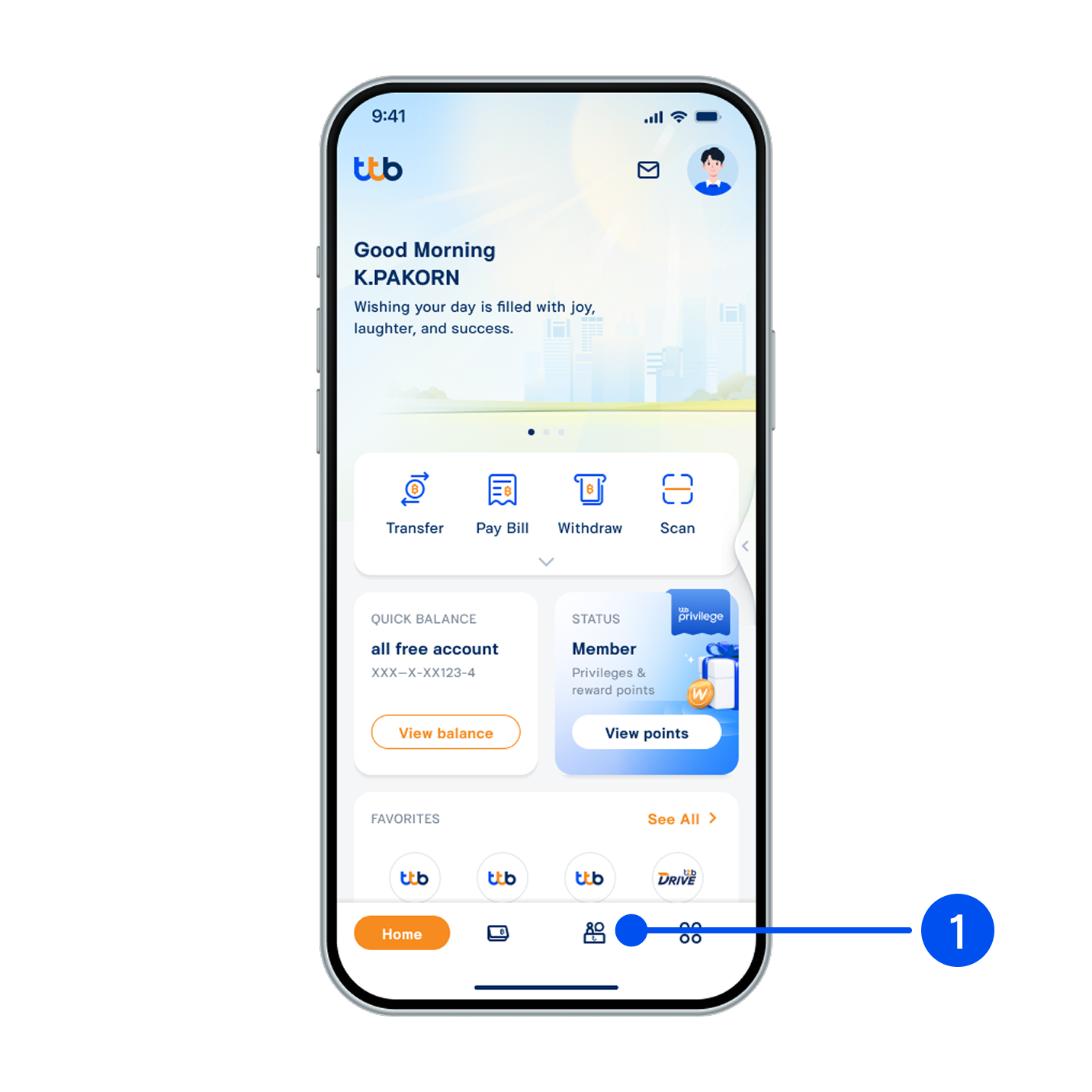
1. Select “Service”, the 3rd menu from the bottom.
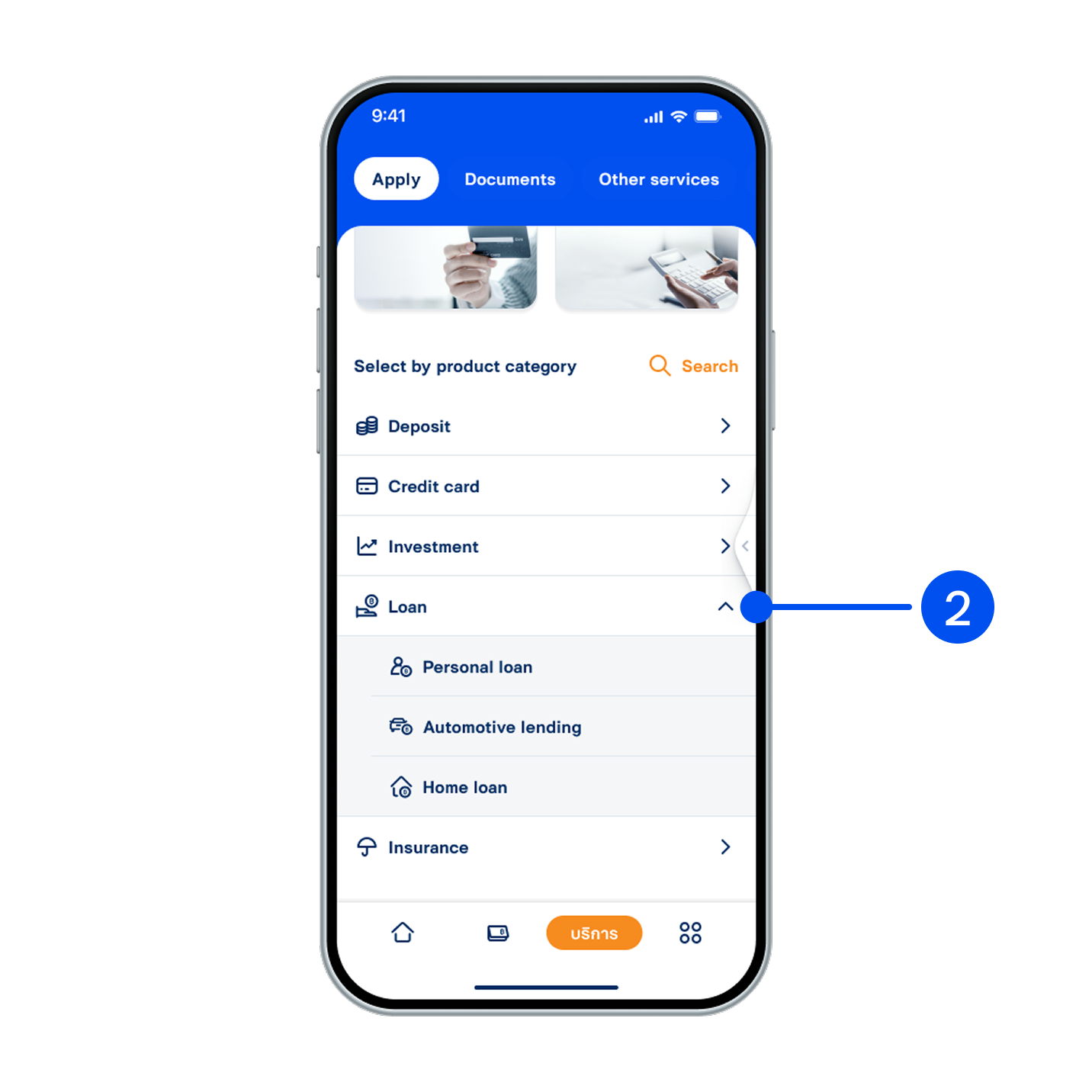
2. Select the type of loan to apply.
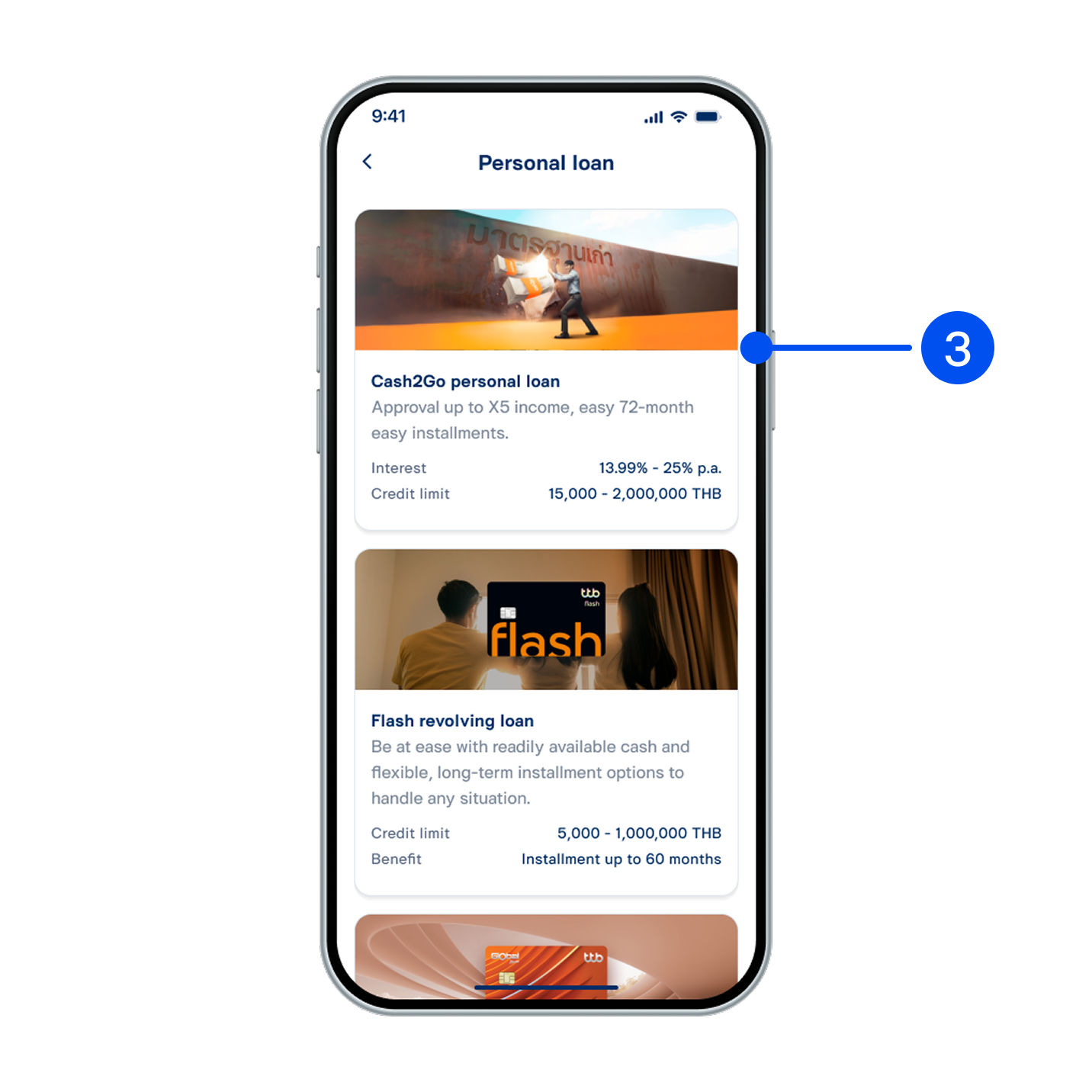
3. Select the loan product to apply.
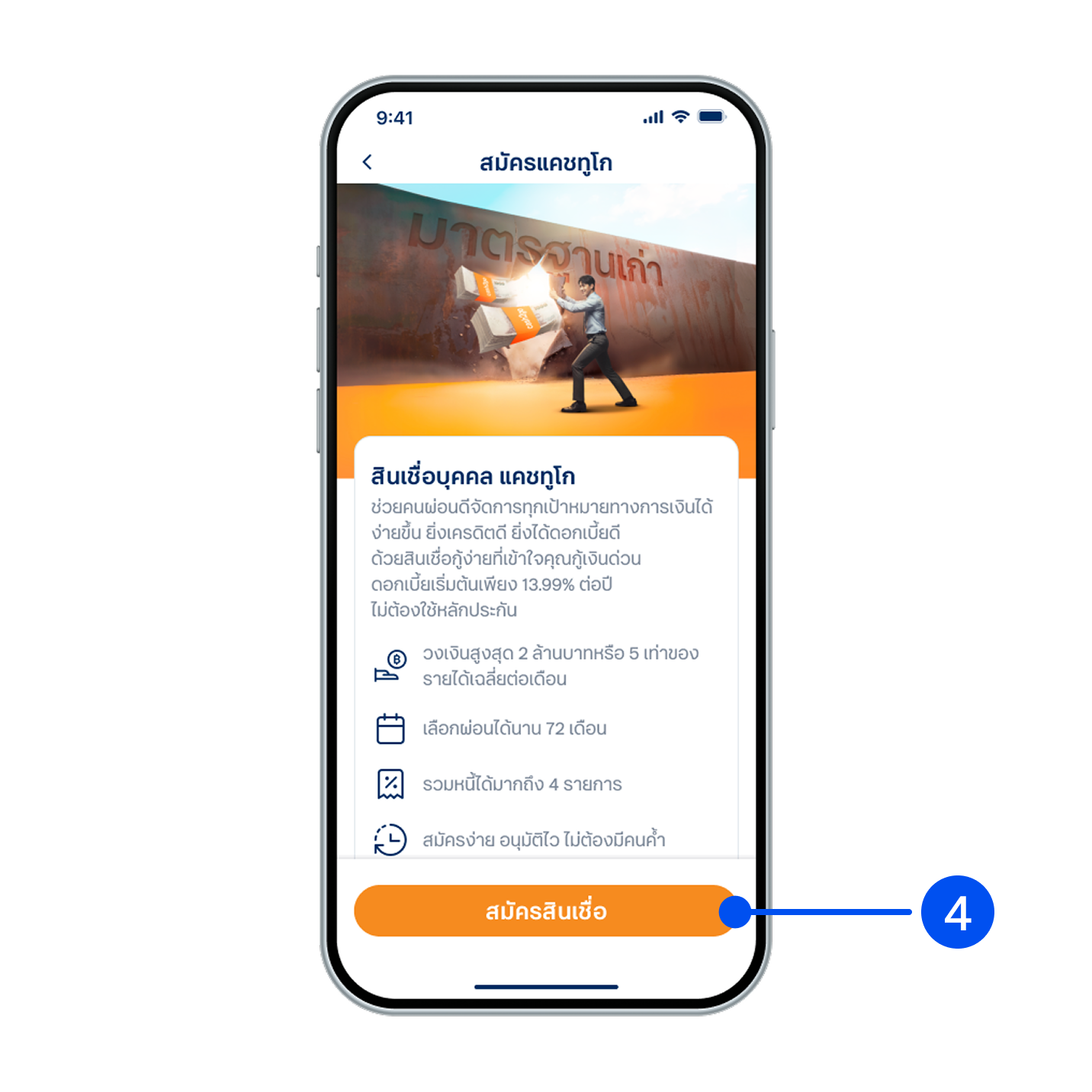
4. Read product details, then select “Apply loan”.
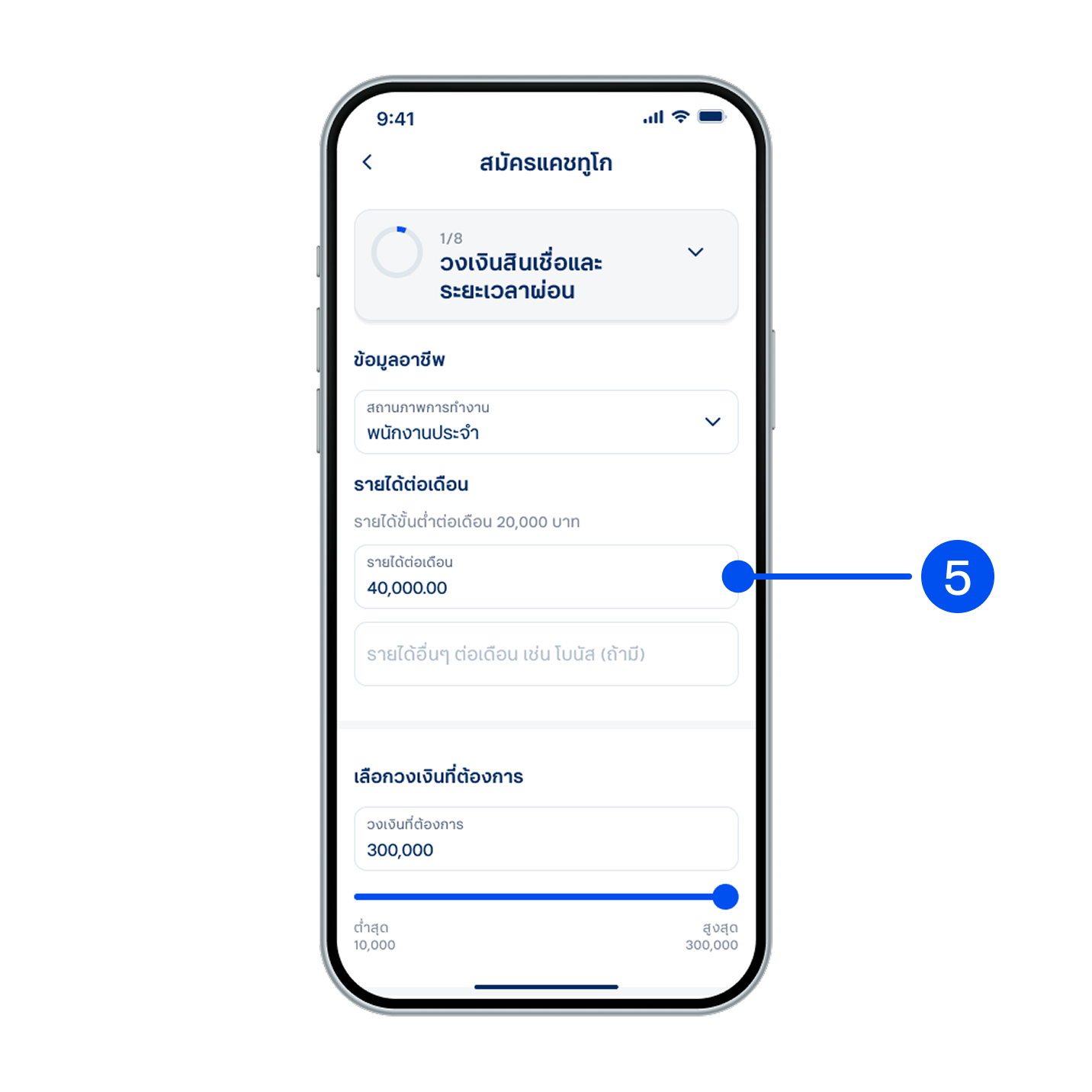
5. Enter your work information and income details. Select your preferred loan limit, then select “Next”.
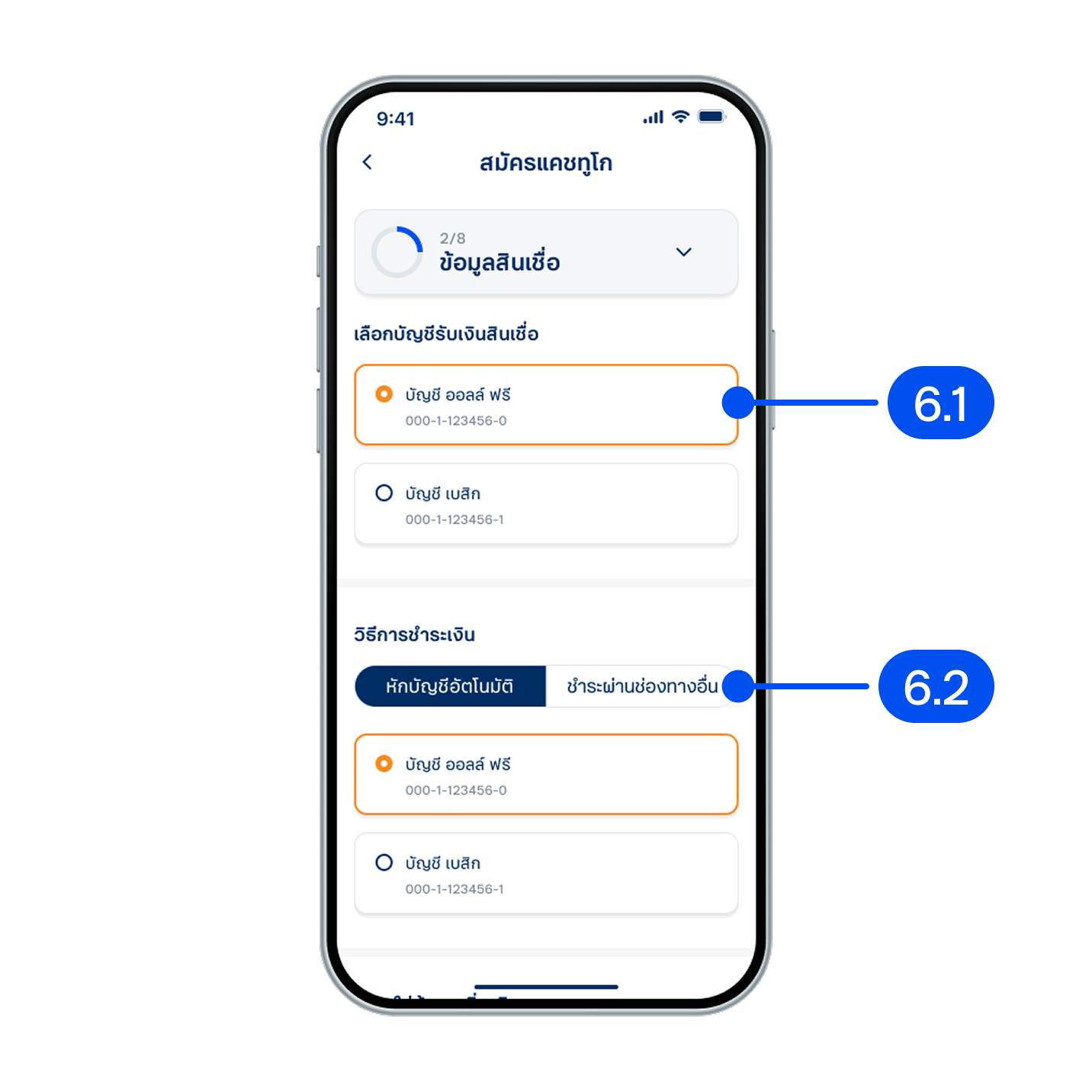
6. In the loan information entry step,
6.1) Select the account to receive loan amount.
6.2) Select the payment method, then select "Next".
6.1) Select the account to receive loan amount.
6.2) Select the payment method, then select "Next".
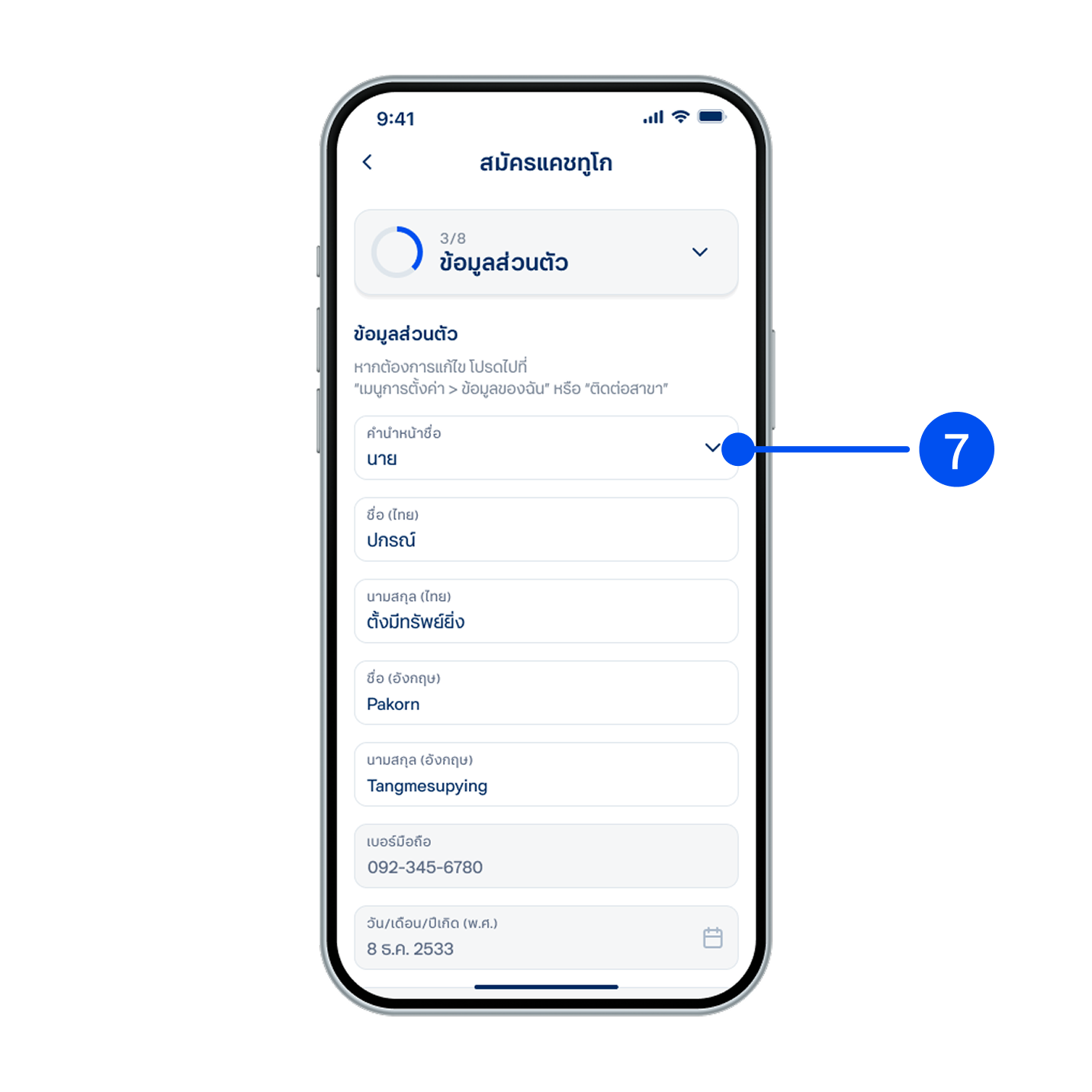
7. Enter your personal information, then select “Next”.
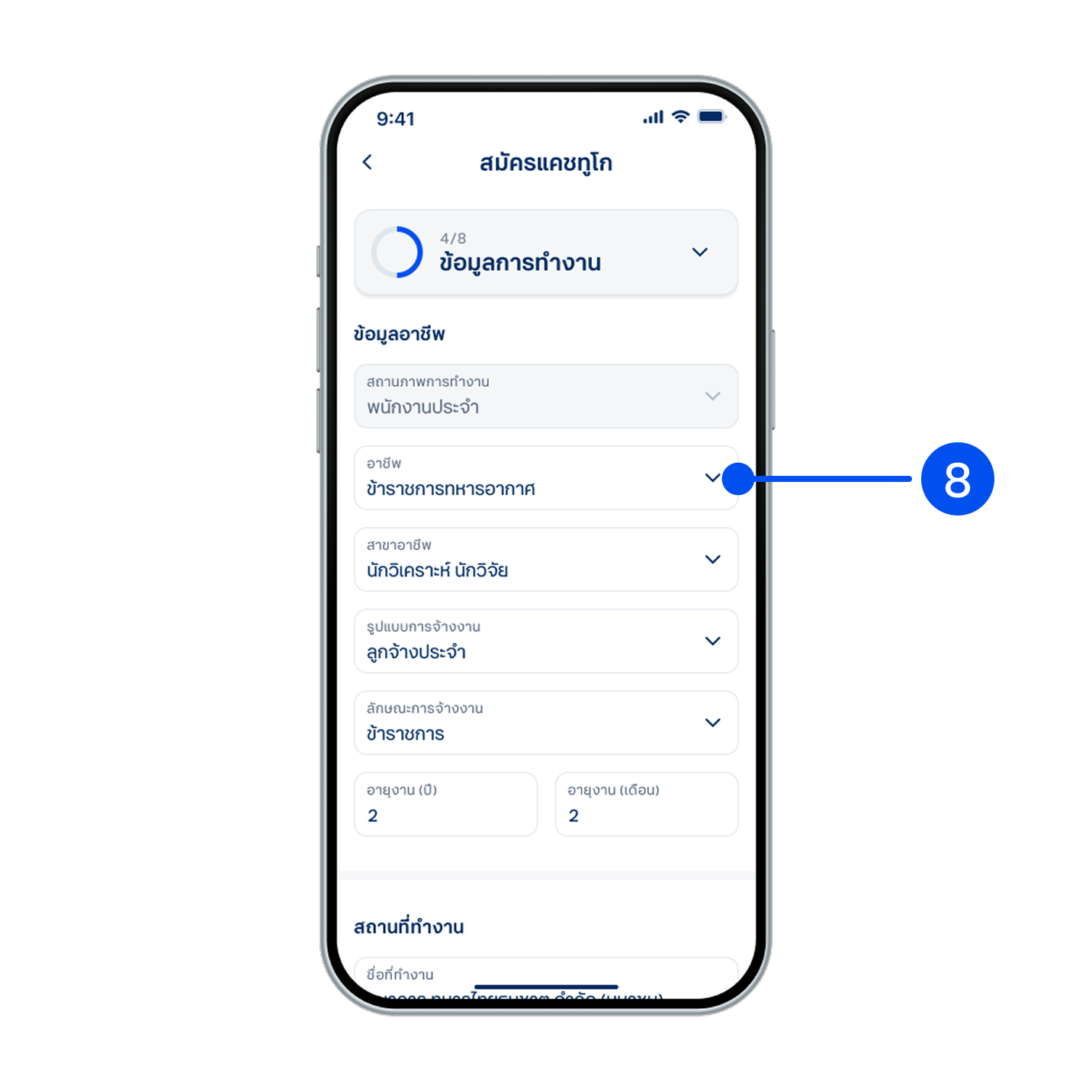
8. Enter your work information, then select “Next”.
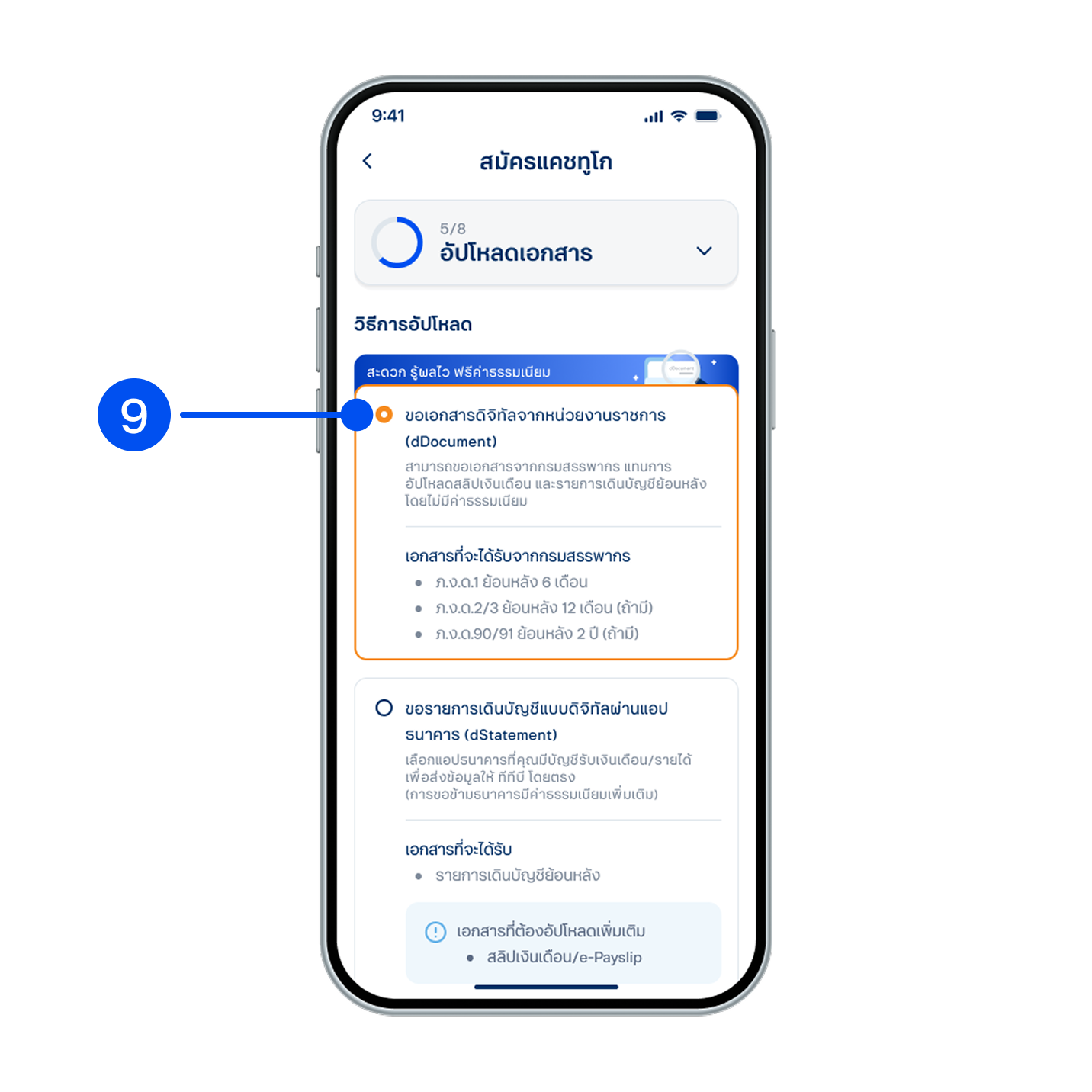
9. In the document upload step, select “Request digital documents from a government agency (dDocument),” then select “Next.”
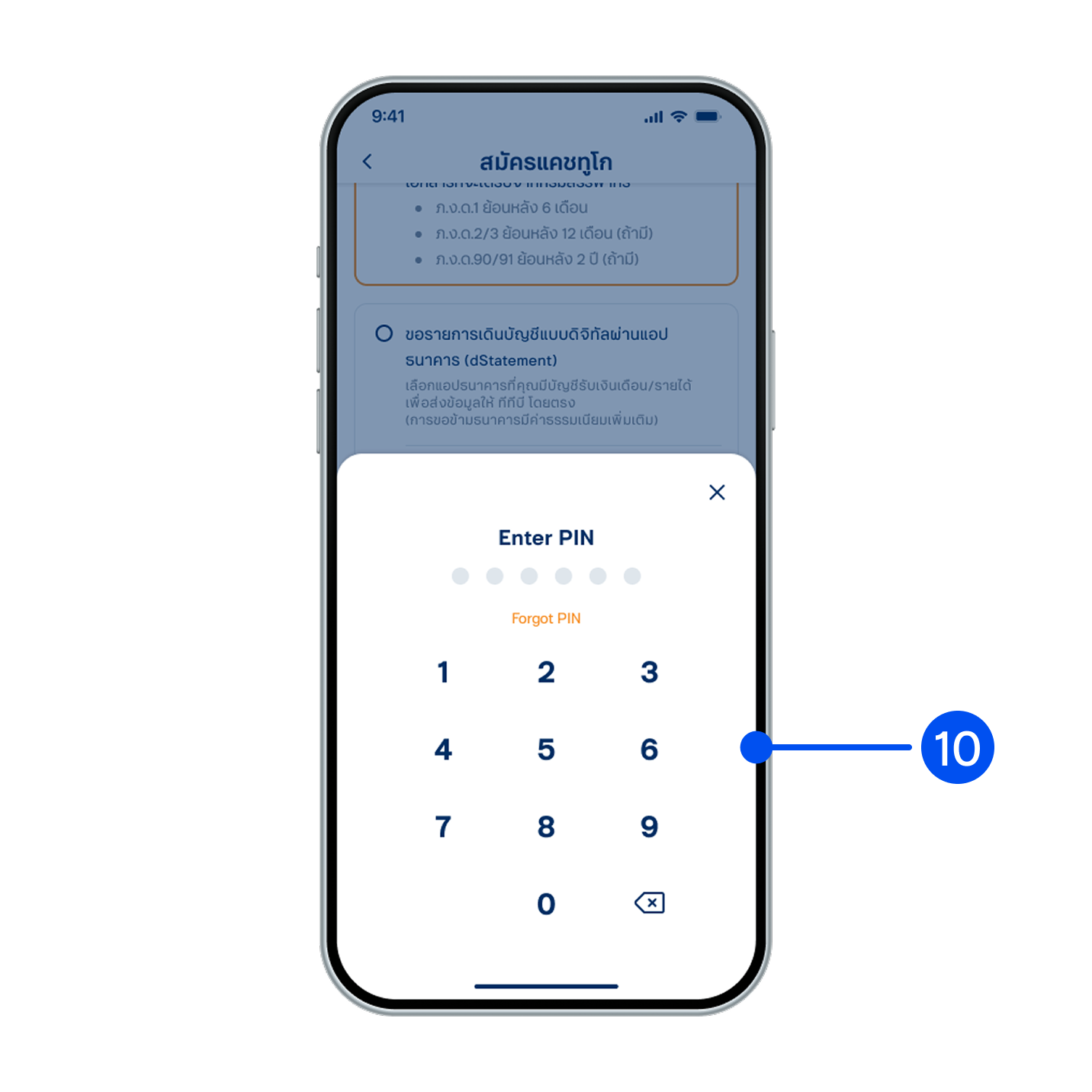
10. Enter PIN to confirm.
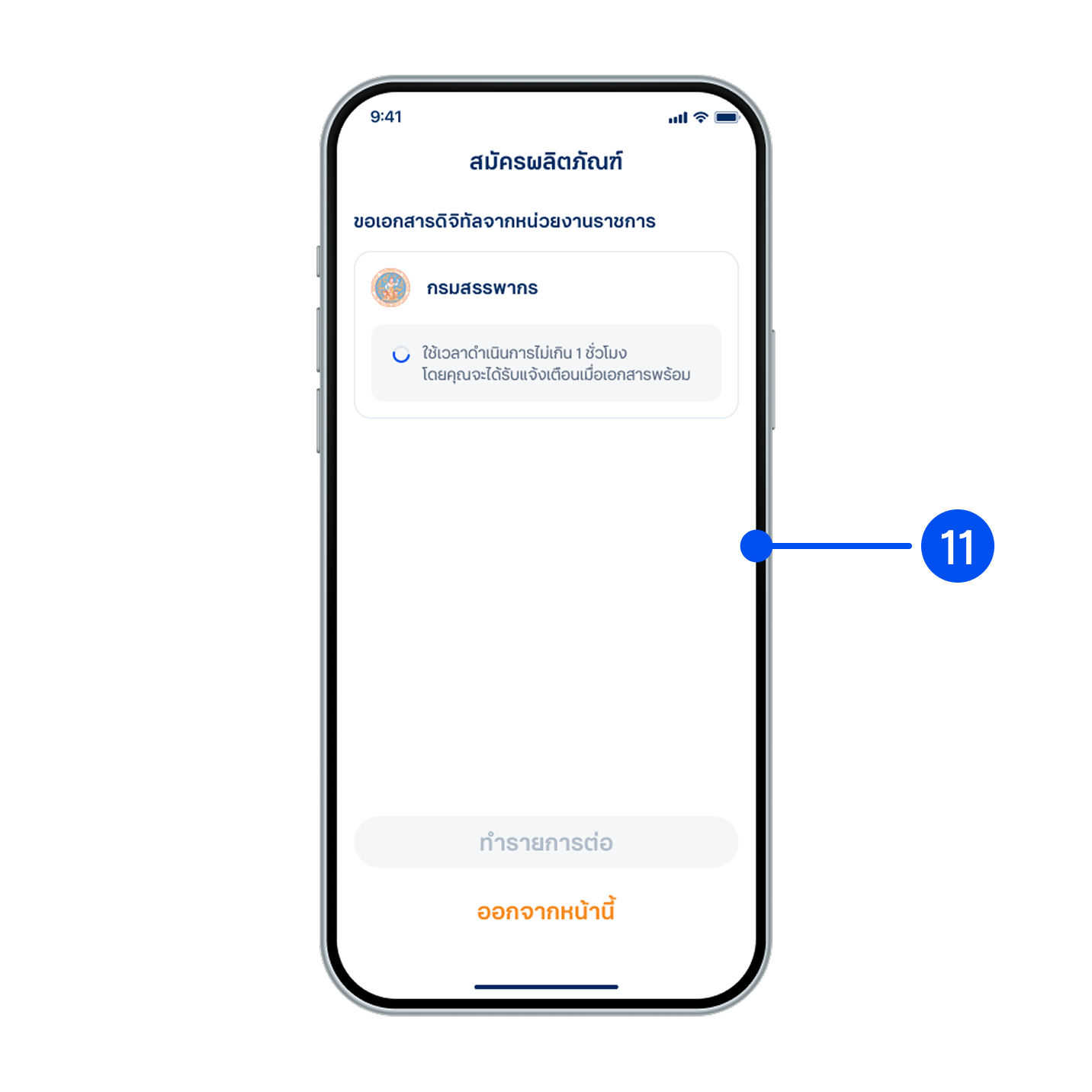
11. Document request is being processed.
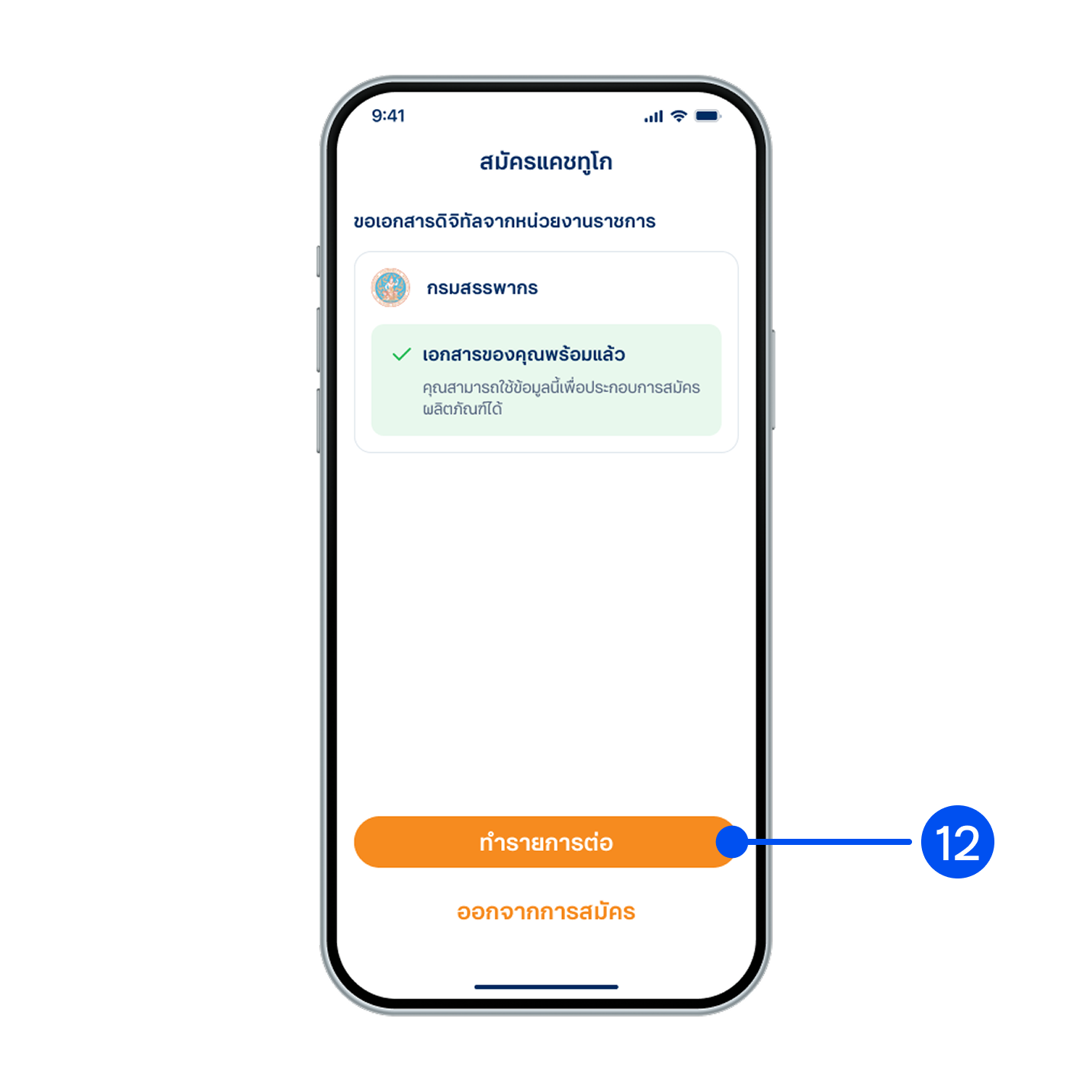
12. Digital documents have been successfully received from the government agency. Then, select “Proceed”.
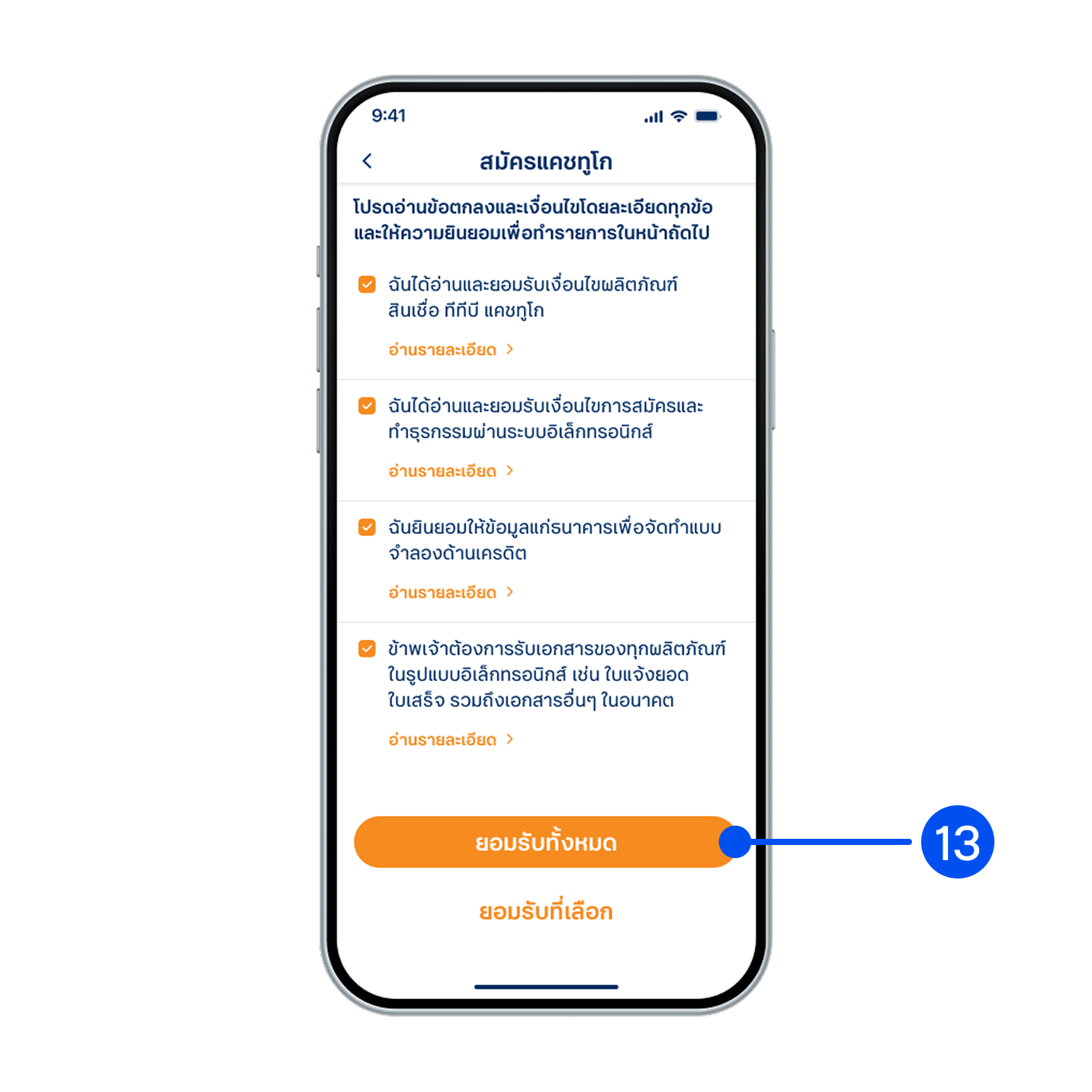
13. Read and accept the terms and conditions, then select "Accept all".
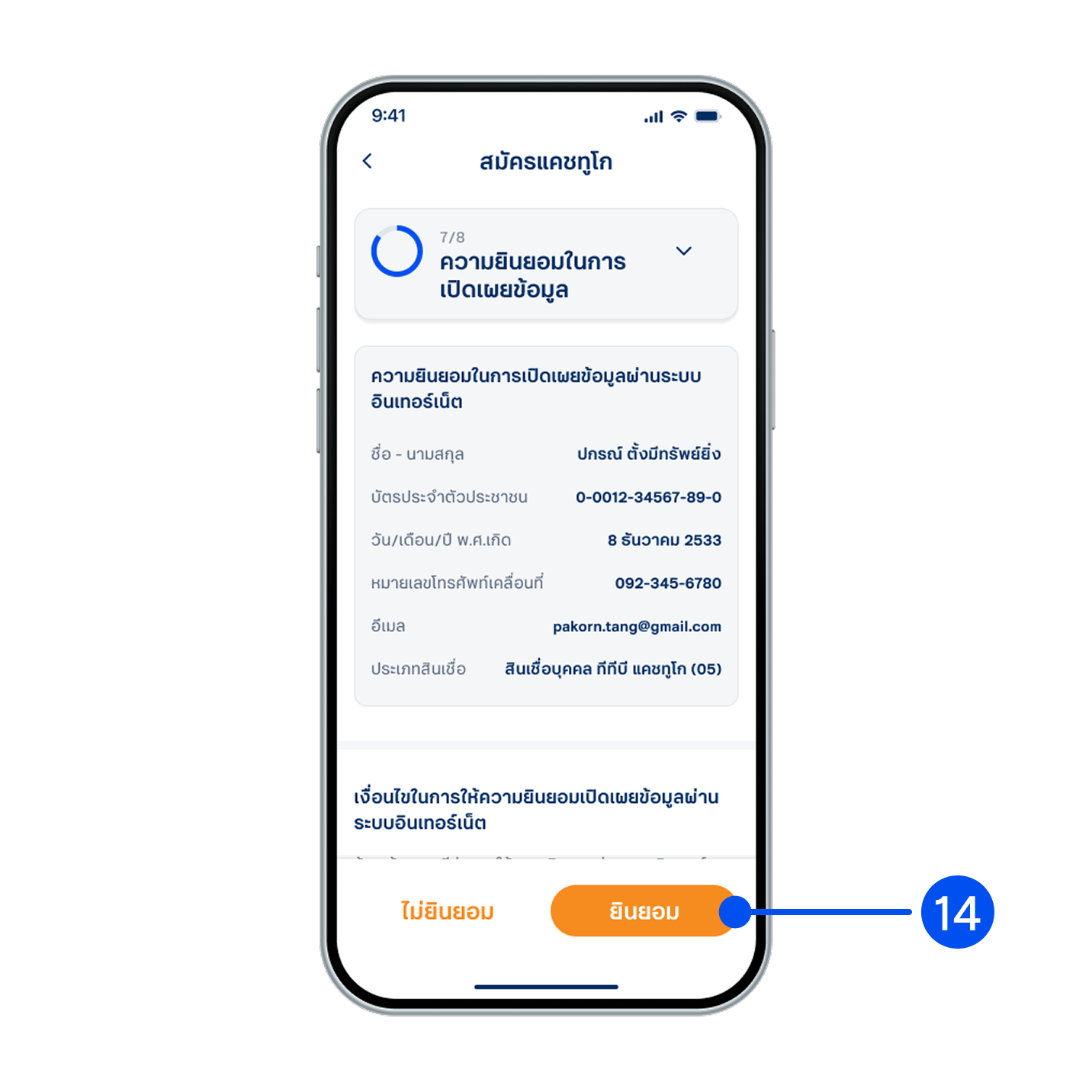
14. Read the consent details for information disclosure, then select "Consent”.
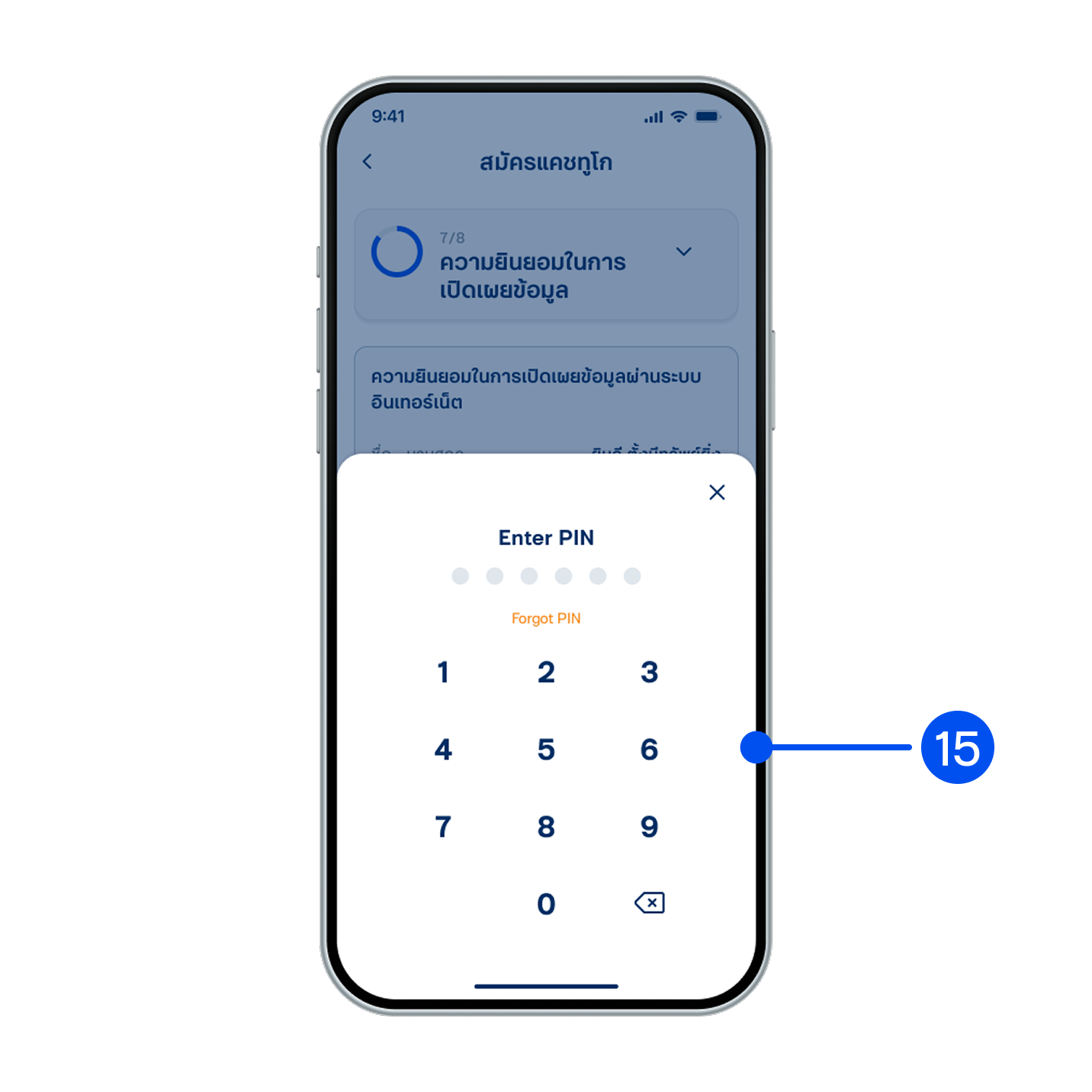
15. Enter PIN to confirm.
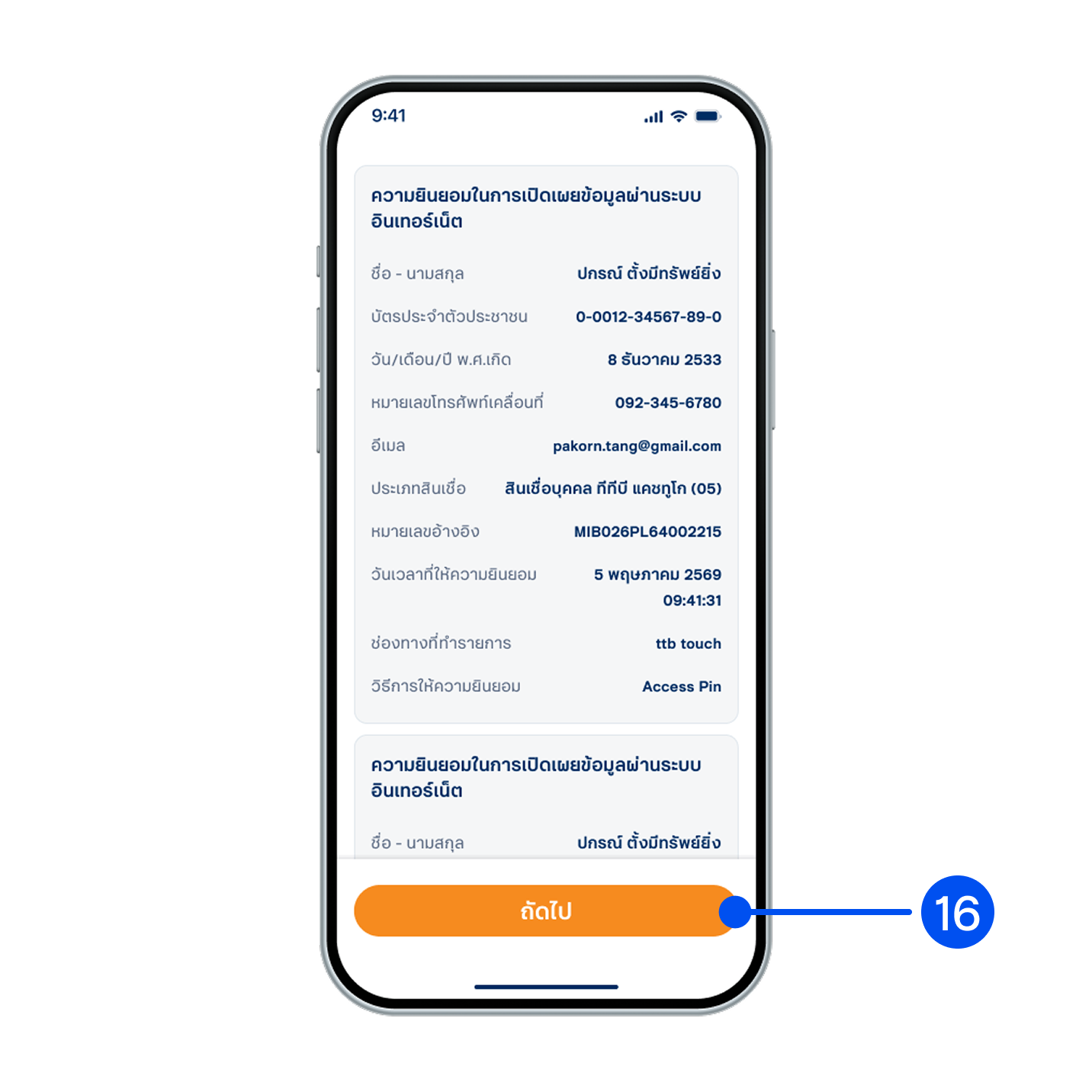
16. Review the consent details for information disclosure, then select "Next”.
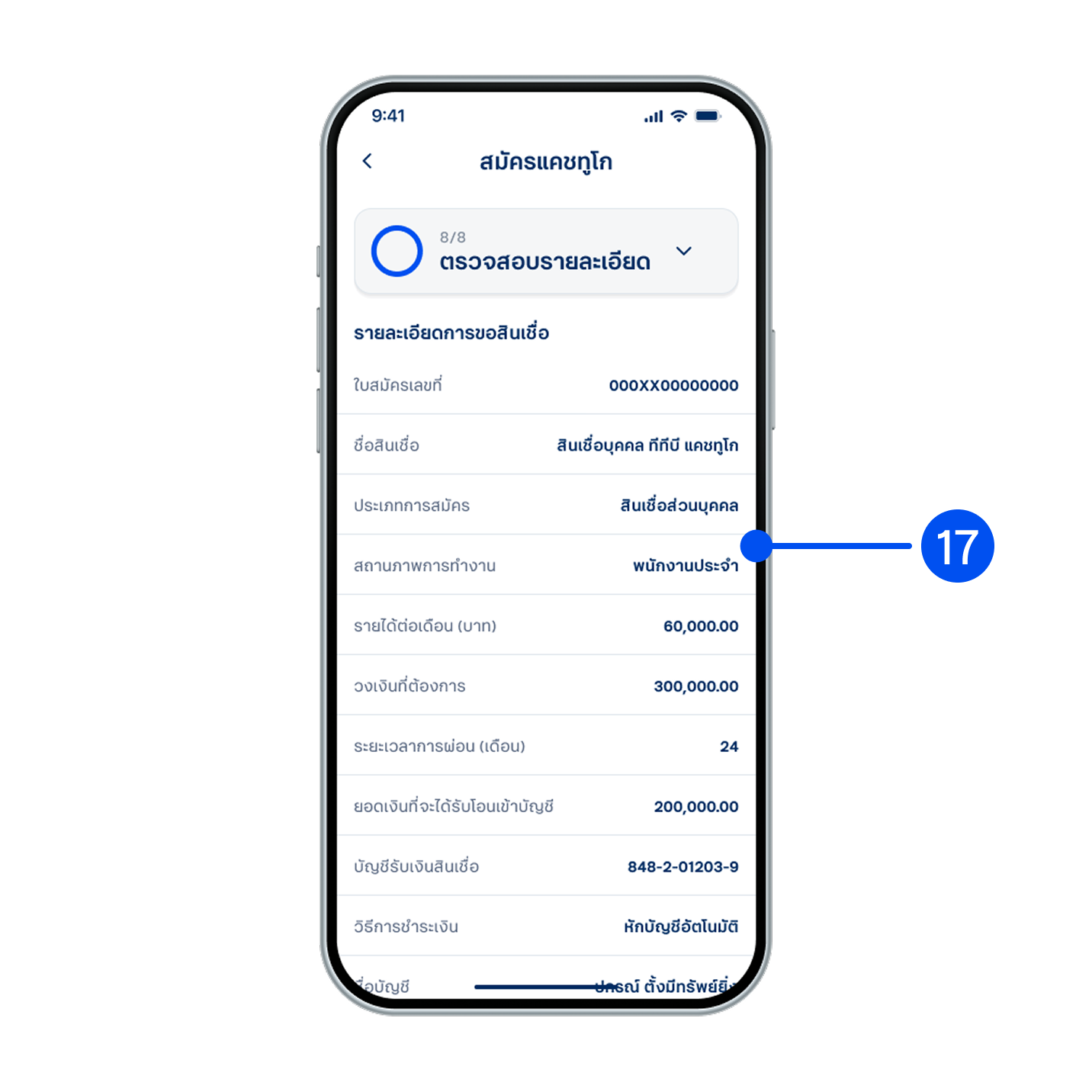
17. Review your application details.
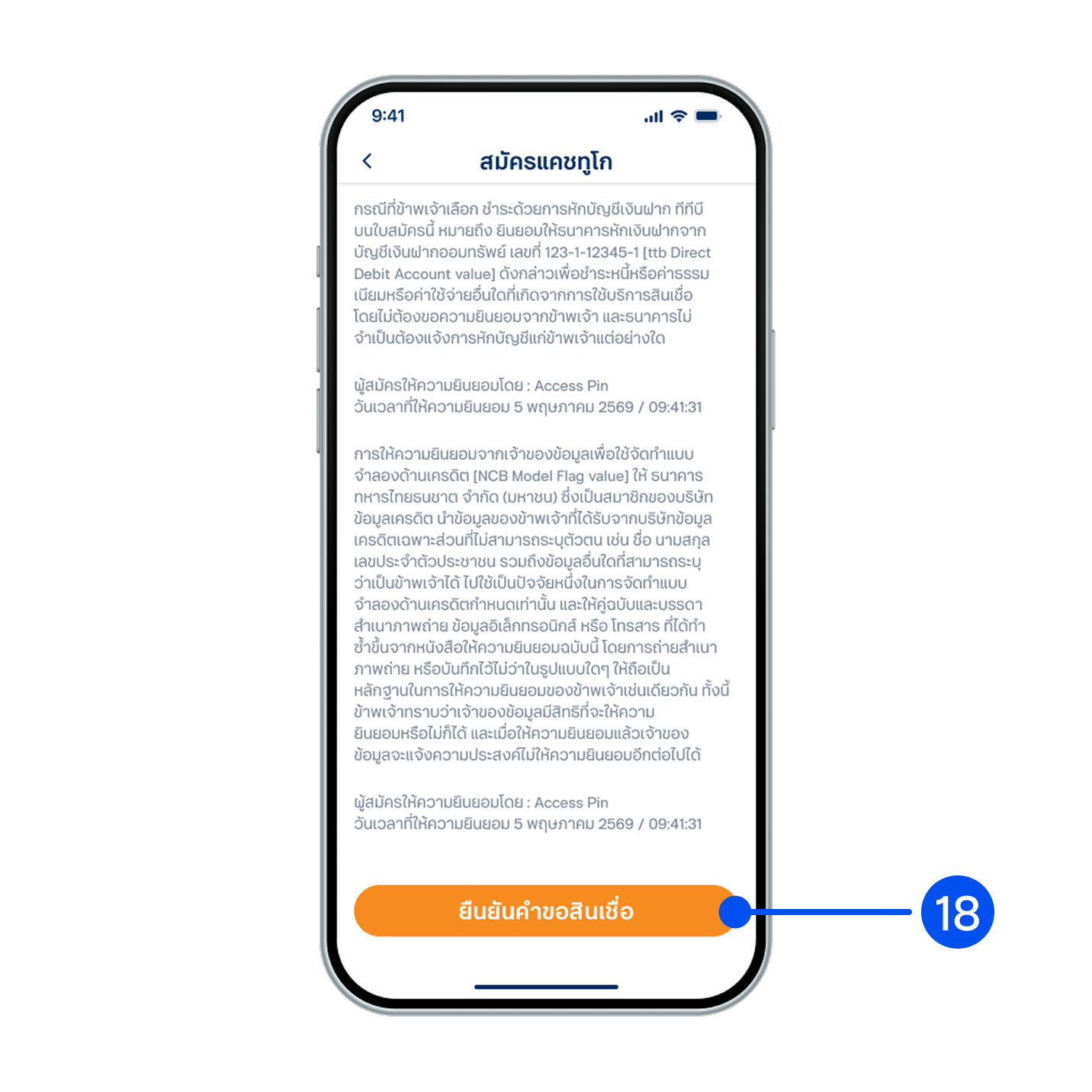
18. Select "Confirm application".
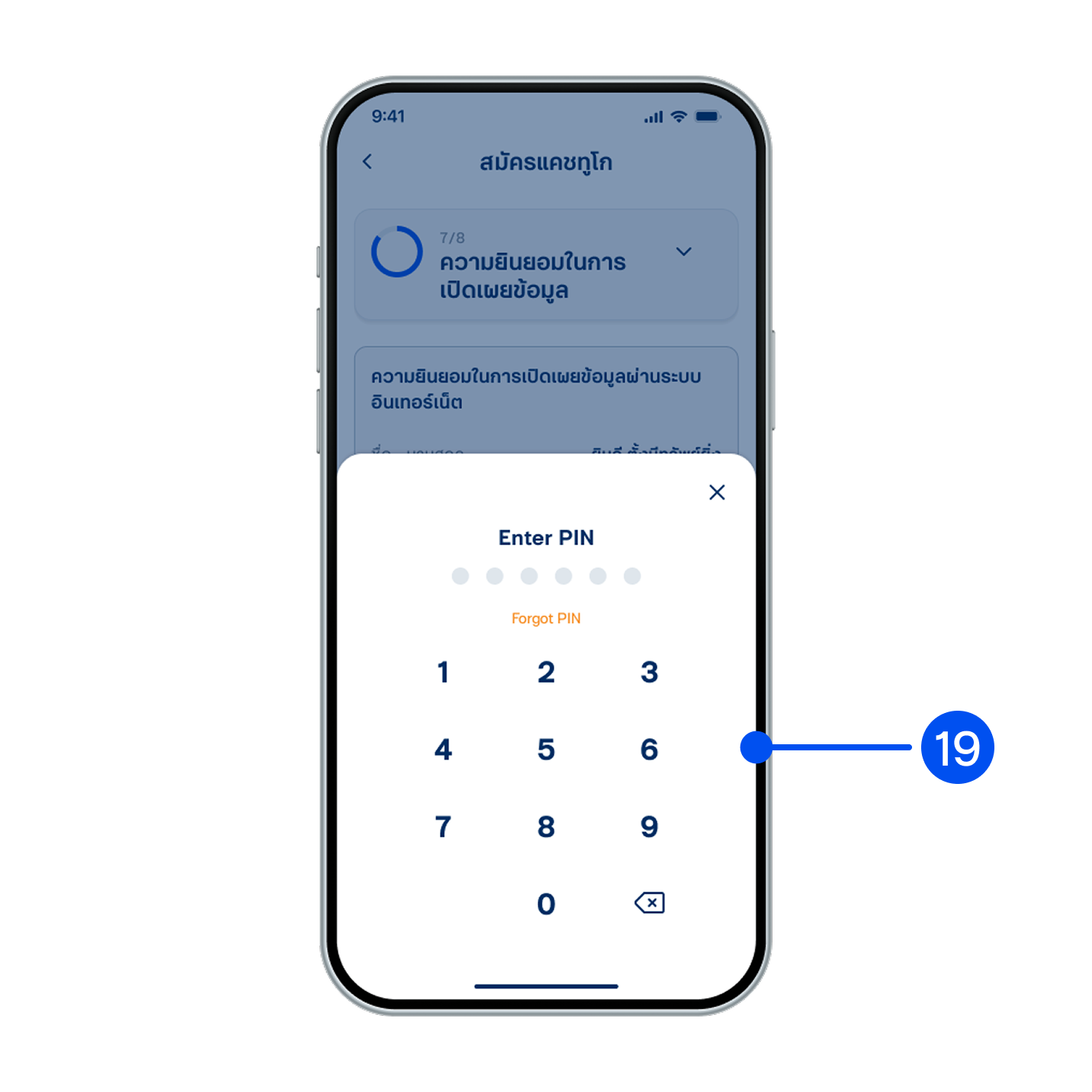
19. Enter PIN to confirm.
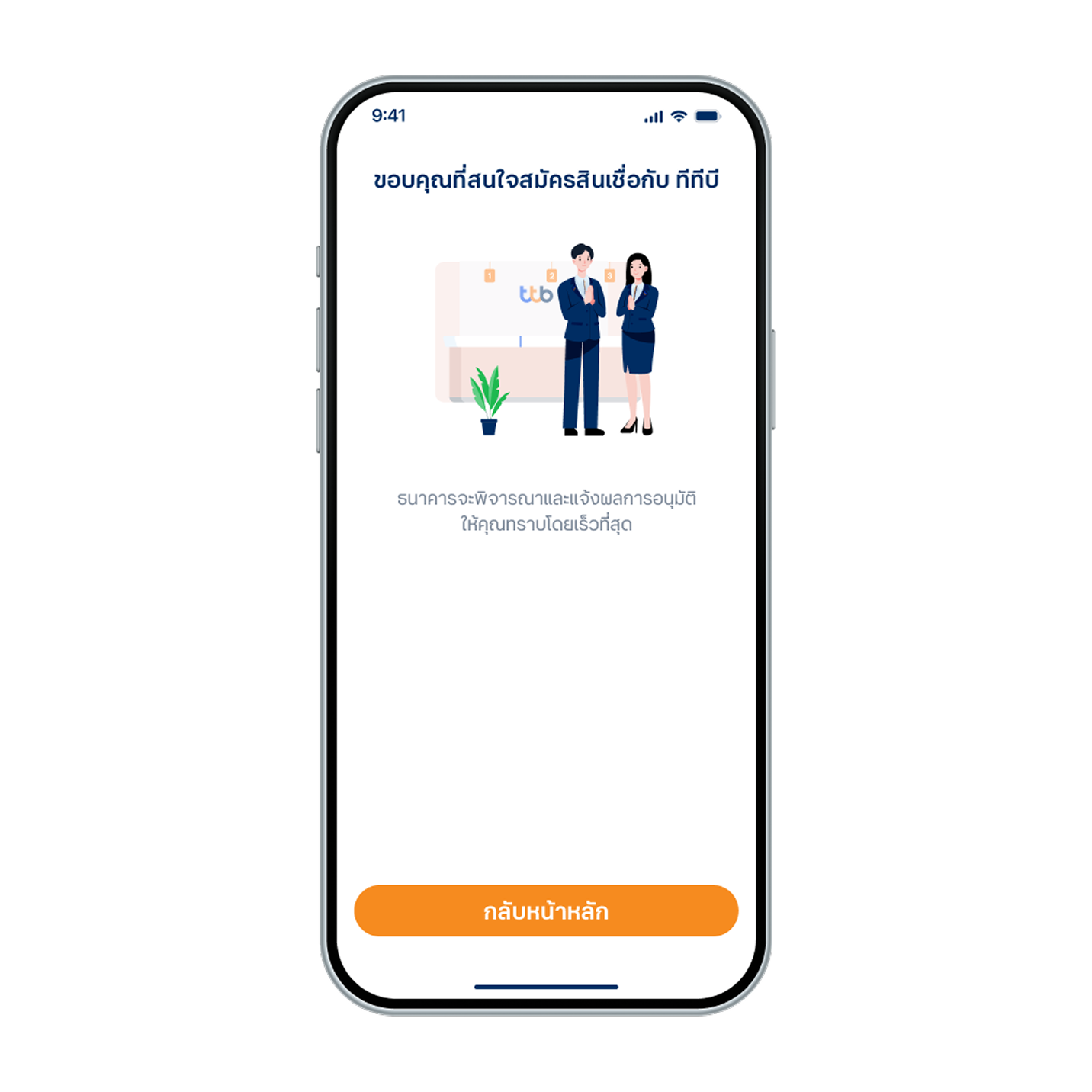
20. Applied loan successfully.